Friday, April 30, 2010

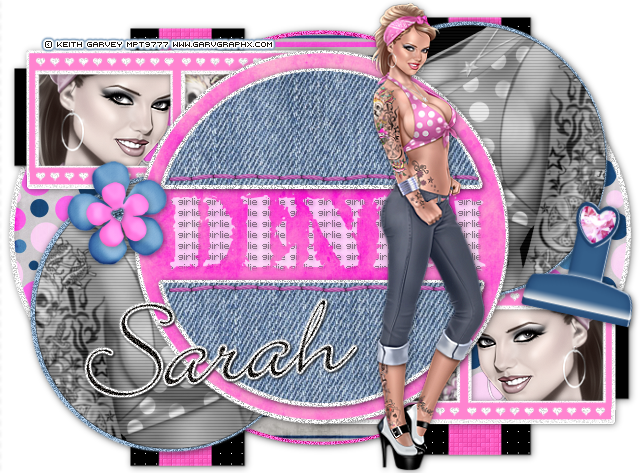
Denim Girl


-->


This tutorial was written in PSP 9 and can be used with any other version.
I assume that you have a working knowledge of PSP.


-----------------------


Supplies Needed:
Tube of choice/close up
Scrapkit by Designs by Sarah
Get her beautiful Denim Girl scrap HERE
Template by Missy template347 HERE
font of choice i used Bickley Script LET


Plugins Needed Optional:
xero – porcelain
photoeffex - scanlines


-----------------------
I am using the artwork of Keith Garvey
You buy his tubes here MPT
-----------------------


Open up template & scrap kit pieces resize them first if needed

Remove wordart, click the circle in the center, slections all float> defloat copy and paste paper of choice invert>delete select none. Hide all layers but your paper & glittered cicle layer, merge paper layer with the glittered layer now add drop shadow.

Select half circle selections all float> defloat copy and paste paper of choice, invert>delete select none. Again hide all layers but these two, merge now add your drop shadow. Select top right circle, selections all float> defloat copy and paste your close up tube of choice, invert>delete select none. Now do your bottom left circle the same way, make your tubes black and white.


Now add your scanlines plugin to both of them, hide all of your layers besides the two glittered circles selections all float> defloat> add new raster layer, flood fill color of choice, I used a blushish color, select none, delete template layer add noise do that to both of the glittered circles now unhide your black and white tube layers, and your black circle layers, merge all and add drop shadow.


Select your top left frame background selections all copy and paste your tubes of choice, invert>delete select none. Do the same to your bottom right frame background. If all your other layers aren’t already hidden hide those, add your xero porcelain plugin settings of choice to your tube layers, now add a drop shadow to your glittered (white) frame layers, now merge them, might as well hide that layer. Merge your small black squares, add drop shadows now hide that layer.

Select your left big pink circle selections all float> defloat> copy and paste paper of choice, invert>delete select none, now do the same with the right circle, now hide the rest of your layers merge your paper layer and now your glittered layer now add drop shadow, now hide this layer.

Merge your rectangle 1 and 2 now sharpen this, since we resized it made it abit blurry this is optional. Now hide that layer, now if you hid every layer there should only be a circle and glittered circle left, if not just go to your way bottom layer and select all float> deloat> copy and paste paper of choice, invert>delete select none. Drop shadow, now unhide all of your layers.


Now add all your elements of choice, use my tag as a reference, resize if needed and add your drop shadows, I then added “DENIM” in the middle of my half circle, then used a pixel font and added another text “girl” and placed it inside the lettering. Now add your main tube where you’d like it, add a drop shadow

add your copyright & your name, Now save as a PNG and you're done!
Thanks for trying my tutorial.
Now lets see those results,
I hope you have enjoyed this tutorial!


-----------------------
This tutorial was written on April 30th, 2010 by Melissa.
In no way may this tutorial be copied to another
website without the creators permission. Any resemblance
to this tutorial is purely coincidental.

Monday, April 19, 2010

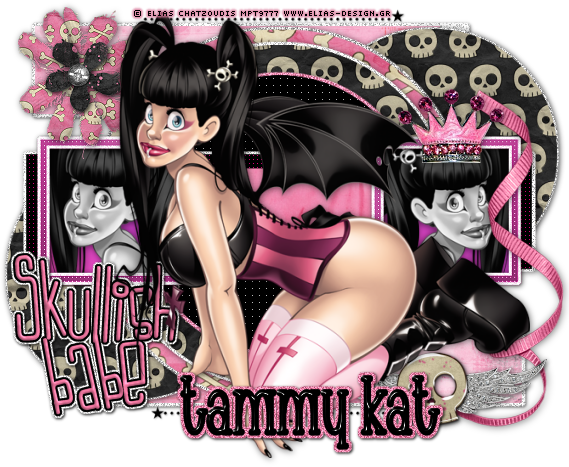
Skullish Babe


-->

This tutorial was written in PSP 9 and can be used with any other version.
I assume that you have a working knowledge of PSP.


-----------------------
Supplies Needed:
Tubes of choice
Awesome Scrapkit by Tammy Kat
Buy her Skulls 'n Bones kit HERE
Missy’s template 332 HERE
fonts of choice i used Chachie
LDJ Jilly Nilly


Plugins Needed Optional
Penta.com – color dot


-----------------------
I am using the artwork of Elias Chatzoudis
You buy his tubes here MPT
-----------------------


Open up template & scrap kit pieces resize them first if needed, resize your template to 80%, remove anything you don’t plan on using. Select the inside of your square frame with your magic wand, selections all modify>expand by 3 copy and paste your tube of choice, invert>delete select none, do the same to the other square, turn black and white.


Select the colored center rectangle, selections all float> defloat> copy and paste paper of choice, invert>delete select none, select the black rectangle selections all float> defloat> modify> expand by 3 add a new raster layer, flood fill color of choice select none, make sure to drag the flood filled layer below your black rectangle layer, add noise now add drop shadow. Go back to the black rectangle get your color dot plugin and use it settings of choice, do the same for your black circle.


Select the black circles glitter layer, selections all float> defloat modify> expand by 3, add a new raster layer flood fill color of choice now select none, drag this layer below the black circle now select none add noise and now add your drop shadow.
Let’s go to the bigger pink circle selections all float> defloat> copy and paste paper of choice, invert>delete select none, behind this layer select it, now selections all float> defloat modify> expand by 3, add a new raster layer flood fill, delect none keep in mind every time you add a new raster layer and flood fill color or paper you need to drag it below so you can see your main layer, add noise and drop shadow, now do the exact same for the last circle and glittered circle layer.
Now go to your purple and pink circle glittered layers, hide all your layers by clicking the “eye” now merge these 2 layers, selections all float> defloat> copy and paste paper of choice, invert>delete select none, now hide that layer, do the same for the back black circles, merge those, selections all float> defloat> modify> expand by 3 now add new raster layer, flood fill color of choice, select none, add noise and drop shadow
Now let’s hide all your layers but your left and right black rectangle merge these not selections all float> defloat> copy and paste paper of choice, invert>delete select none, hide these unhide your white glitter layers add drop shadow, now unhide all your layers
Now for your main tube, place where you’d like it resize if needed, now add drop shadow, resize your elements of choice, place them where you’d like them add drop shadows of choice, now get your text tool out and type out anything you’d like for a simple wordart I used skullish babe add your gradient glow drop shadow.
add your copyright & your name, Now save as a PNG and you're done!

Now lets see those results,
I hope you have enjoyed this tutorial!

-----------------------
This tutorial was written on April 19th, 2010 by Melissa.
In no way may this tutorial be copied to another
website without the creators permission. Any resemblance
to this tutorial is purely coincidental.

Sunday, April 18, 2010

Bad Girls Club


-->


This tutorial was written in PSP 9 and can be used with any other version.
I assume that you have a working knowledge of PSP.

-----------------------

Supplies Needed:
Tubes of choice
Badass Scrapkit by Tammy Kat
Buy her Bad Girls Club kit HERE
Melissa’s template 36 HERE
font of choice i used QK Marisa

-----------------------
I am using the artwork of Tyson Mcadoo
You buy his tubes here www.mypsptubes.com
-----------------------


Open up template & scrap kit pieces resize them first if needed.


Now I took off the doodles, select the back circle, selections all float>defloat> copy paste your paper of choice, I used the “bad girls club” paper, now invert>delete select none. Now delete your template layer, on your paper layer selections all float> defloat> modify> expand by 3, add a new raster layer, flood fill color of choice, I used hot pink, select none, drag this layer below your frame layer, add noise now drop shadow.


Now let’s go to your long rectangles, they are all conected, selections all float> defloat, copy and paste paper of choice, I used the purple paper, invert>delete select none, Now get delete that template layer, select the outside frames of the rectangle, selections all float>defloat copy and paste another paper of choice, I used the bright green paper, now invert>delete select none, I added noise to paper layer. Add drop shadow.


Now select each square selections all float> defloat> copy and paste paper of choice, invert>delete select none, now do this for every square, make sure to delete the template layers as you go, now do the same for your square frames, selections all float> defloat> add a new raster layer flood fill color or paper of choice, I used white select none, delete template layer, I did this for each square, I then selected each paper square again selections all float>defloat> copy paste your tube of choice, invert>delete select none, change blend mode to screen, do this for every square that you placed your tube, now I on your square frames add noise if you’d like, I then added drop shadow, now at this point I would merge everything.


Now place your main tube in front add drop shadow, I used the cute frame element “bad girl” and I copied and pasted it on my tag dragged it below my merged tag, now cut off any access of your tube that you don’t want showing. Now add your other elements of choice add drop shadows.


add your copyright & your name, Now save as a PNG and you're done!
Now lets see those results,
I hope you have enjoyed this tutorial!
-----------------------
This tutorial was written on April 18th, 2010 by Melissa.
In no way may this tutorial be copied to another
website without the creators permission. Any resemblance
to this tutorial is purely coincidental.

Friday, April 16, 2010

Sugar Pop


This tutorial was written in PSP 9 and can be used with any other version.

I assume that you have a working knowledge of PSP.


-----------------------


Supplies Needed:
Tube of choice/close up

Gorgeous scrapkit by TammyKat

Find her freebie add on Sugar Rush Here
*Link fixed*

font of choice i used CK Dear John

Sparkles of choice


Plugins Needed Optional:

Photoeffex - scanlines


-----------------------


I am using the artwork of Keith Garvey

You buy his tubes here PTE


-----------------------


Very easy & short tut.


Open a 550x550 canvas


Let’s open the freebie add on, I used the frame, the black & purple brackets & the sugar element, now resize your frame, place in the center of your canvas, I then selected the inside of the frame selections all> float> defloat, add a new raster now flood fill color of choice I used purple, invert>delete select none, drag layer below your frame, now do the same thing again inside the frame, but copy and paste your close up tube of choice, invert>delete select none. Now you can change the blend mode of your tube layer.


Now let’s add your plugin scanlines, if you don’t have this plugin I’m sure you can use your psp effects “blinds” and for the color just use the color of your tube.. now add your sparkles of choice, cut off any access…


Now let’s open your brackets I resized mine, and placed them on either side of the frame, now add a drop shadow to each. Place a tube in front of your frame either standing or laying, I choose a tube that’s laying flat, I resized my tube placed it in front of the frame, added a drop shadow now I resized the element “sugar” and placed it on top of my tube but below to make it look like she’s laying on it, add a drop shadow to that as well.


add your copyright & your name, Now save as a PNG and you're done!


Thanks for trying my tutorial.

Now lets see those results,

I hope you have enjoyed this tutorial!


-----------------------

This tutorial was written on April 16th, 2010 by Melissa.

In no way may this tutorial be copied to another

website without the creators permission. Any resemblance

to this tutorial is purely coincidental.
Thursday, April 15, 2010

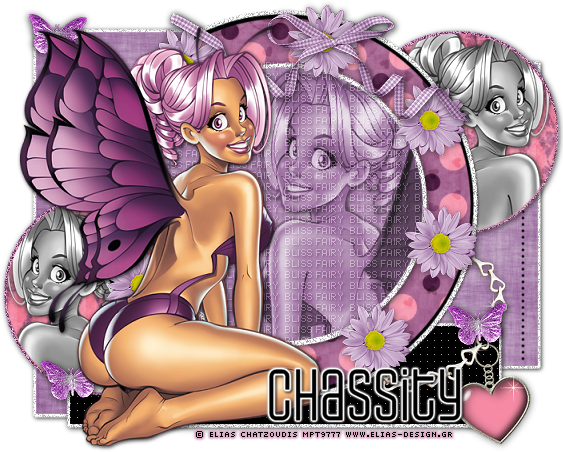
Fairy Bliss


-->

This tutorial was written in PSP 9 and can be used with any other version.
I assume that you have a working knowledge of PSP.

-----------------------
Supplies Needed:
Tube of choice/close up
Gorgeous scrapkit by Chassity
You can buy her Girlie Girl kit HERE
Missy’s Template 329 HERE
font of choice i used Weltron

Plugins Needed Optional:
MuRa's Meister – Copies
Penta.com – color dots
Xero - porcelain

-----------------------
I am using the artwork of Elias Chatzoudis
You can buy his tubes HERE

Let’s open your template, I removed the pieces I wasn’t going to use before I got started, which was the wordart, stars, dots, some of the other stuff, you can use my tag as a reference on which to remove, or leave it as is…. Now resize, I resized to about 80%

Now lets open your tubes of choice, resize your tube I resized about 80% also
Place tube where you want it but not in front of the circle we’re going to be needing that clear, I placed mine on the left hand side, now add drop shadow

Now let’s click on the main circle, selections select all>float> defloat copy and paste your paper of choice, invert>delete select none, get rid of the template circle.

Select your paper layer again do the same thing, but copy and paste your close up tube of close, invert>delete select none, make sure your tube layer is above the paper layer now you don’t have too but I changed blend mode to luminance (legacy). Now let’s apply open up xero for that porcelain effect, mess with the settings that best suit you. Now let’s get your text tool background set to white, let’s use a pixel type font size 6 anti-alias off, type out text that you would like I choose “Fairy Bliss” Layers>convert to raster


Not let’s use copies plugin, “preset menu” I used “tiling” I tweaked with the rest of the settings, you may need to too, to get the effect you’d like. Now once you’ve done that go to your paper layer, again selections select all>float > defloat, select invert not go to your layer with the tiled text hit delete selection none. Change blend mode to “soft light” now add drop shadow to make the text pop out more. I used Opacity at 100, blur at 3, vertical & horizontol at 1, color black, click ok.

Let’s drop down to your glittered circle layer, I went to adjust> add noise set mine to like 66% so it would be brighter since I resized it, now go back to adjust>sharpen, add drop shadow of choice, Now let’s move to the pink circle layer, selections select all>float> defloat copy and paste paper of choice I used paper7 invert>delete select none. Close out of your template layer, go back to the other glittered circle layer, and refresh that as well go to adjust>add noise, now back to adjust>sharpen.

Now let’s click on your thin rectangle, get your penta.com color dot plugin, settings of choice apply to your black square, you may change the color or add paper, but I didn’t, now go to the layer below the black rectangle, adjust>add noise 66, adjust>sharpen, now add drop shadow.

Now let’s go to both of your circle layers on each side, hide all your layers, mege these together, unhide your layers, selections all float>defloat copy and paste paper of choice, invert>delete select none, now time to add your tubes of choice if you want, selections all float>defloat, copy and paste your tube of choice, to each circle at once, not click invert> go to each tube layer and hit delete, now select none, turn your tubes black & white

Go back on the paper layers on the 2 circles, selections all float >defloat> modify> expand by 3, add a new raster layer, floor fill color white, select none, drag flood fill layer below your tube & paper layer, to go adjust> add noise 54% drop shadow.

Let’s hide all your layers besides your back rectangle layer with the glittered layer, and “shape2”, select all float>defloat, add a new raster layer, flood fill white, select none, now drag the white layer below, get rid of the pink/white glittered layer that was below it, back to white floor fill, adjust>add noise 54%, now add a drop shadow, now do the same thing with your shape2 layer, now hide your glittered layers, merge your rectangle & shape2 layers, selections all float>defloat copy and paste your paper of choice, invert>delete select none.

Now open your flower element of choice, I used the purple element44, resize down to about 25% copy and paste around the bigger circle duplicate and add them around in a circle, close out of all your layers besides the flowers, merge them now add a drop shadow and unhide all your layers, drag below your tube layer if you placed any above it so it hides below. Now add the rest of elements of choice where you’d like them, add drop shadows now merge all of your layers.

Now add your copyright, name and save as a PNG


Now lets see those results,
I hope you have enjoyed this tutorial!

-----------------------


This tutorial was written on April 15th, 2010 by Melissa.
In no way may this tutorial be copied to another
website without the creators permission. Any resemblance
to this tutorial is purely coincidental.

Sunday, April 11, 2010

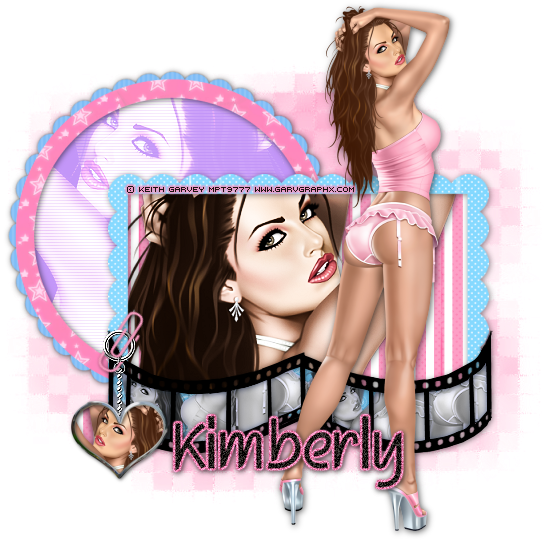
Sweet Babe


-->


This tutorial was written in PSP 9 and can be used with any other version.

I assume that you have a working knowledge of PSP.


-----------------------


Supplies Needed:

Tubes/close ups of choice

Scrapkit used My First Expression

Kimberly’s kit you can find HERE

font of choice i used Squire

film strip of choice I don’t remember where mine

came from so I can’t share it with you.

mask of choice I used Vix’s mask 365


Plugins Needed Optional:

PhotoEffex – Scanlines

Xero – Radiance

Xero- Porcelain


-----------------------


I am using the artwork of Keith Garvey

You can buy his tubes here PTE


-----------------------


Okay let’s open up the square & circle frame, papers of choice, elements of choice


Now open a 600x600 canvas, place your blue rectangle frame in the middle, use your magic wand select the inside, selections modify>expand by 3 copy and paste your paper of choice now select invert>delete, select none. Now drag your paper layer below your frame, add your tube close up of choice inside thr frame duplicate tube turn the top layer to black and white and change the blend mode to “hard light” merge both tube layers only, add a drop shadow to that, now add one to your frame.


Open your circle frame, now place on the side of your frame use my tag as a guide, click the inside with your magic wand how you did your rectangle frame, now you can either copy and paste your paper of choice or use color, I used the purple from one of the papers and added a new raster layer flood filled with purple, select none and drag my purple layer below my circle frame. Now I mirrored my tube so it’s facing the opposite direction, place where you want the tube to go, select your paper or color layer, selections all, float>defloat go to your tube layer now selections invert>delete now select none, still make sure your tube layer is below the frame, add your plugin scanlines, I then used plugin radidance I felt like I couldn’t see my lines, so I added scanlines again, also add drop shadow on your frame.


Now let’s do this paste your main tube where you’d like it and add a drop shadow to that, Now open your frame of choice and place near the bottom, select inside each square and paste in your paper of choice, I used the blue paper. Selections invert>delete select none. Now drag your paper layer below your frame, now click on each square or do each one seperate, and add your tube or tubes of choices to each square please make sure you use each tube from the same artist, now make your tube layers black and white once you’ve done that add your plugin xero- porcelain if you’d like.


Now you may add any elements of choice, I added the heart from her kit and the paper clip, I messed around with the heart made it look like a charm, you may add your own charm if you’d like or mess around with he heart charm, now for the last part make sure you drop shadowed everything you needed, merge all your layers add your mask.


add your copyright & your name, Now save as a PNG and you're done!


Now lets see those results,

I hope you have enjoyed this tutorial!


-----------------------

This tutorial was written on April 11th, 2010 by Melissa.

In no way may this tutorial be copied to another

website without the creators permission. Any resemblance

to this tutorial is purely coincidental.
Bad Attitude


This tutorial was written in PSP 9 and can be used with any other version.

I assume that you have a working knowledge of PSP.


-----------------------


Supplies Needed:

Tubes of choice

No scraps needed

Missy’s Template 335 HERE

font of choice i used TheNautiGal


Plugins Needed Optional:

MuRa's Meister - Copies

PhotoEffex – Scanlines

Xero – Radiance

Penta.com – color dot


-----------------------

I am using the artwork of Mark Wasyl

You can buy his tubes here CILM

-----------------------


Open up your template


Let’s take off the text “my bad attitude” right click “cut” now paste it back into paintshop, I resized my template to about 80% before continuing to the next steps.. now use your selection tool and draw a rectangle around one of the top words, now cut that off and paste back onto your template, *if too confusing just re type out “my bad attitude” in your gradient of choice* use your “meister’s copies” plugin and settings of choice, I used “tiling” though, the rest I just messed with to suit my needs.. I used it inside the big black circle, so I now select the black circle selections select all>float >defloat, click on your copies text layer, not go to selections>invert deleted, now select none.. I also took off some of the other stuff, like the stars, and the text “I don’t give a toss” this is optional


Now get rid of the layers you aren’t planning to use, so there is less layers to deal with, once you’ve done that Select the light blue circle “circle2” and selections all, float> defloat add a new raster layer and flood will color of choice, or leave this color the way it is, select none, now delete the original circle2 layer


Now get your for your main tube, resize if needed add drop shadow now place in front of the black circle cut off the access, now add drop shadows on the layers you’ve done.

Now select your gradient filled rectangle selections select all>float >defloat paste your tube of choice, select invert> delete now selections none, now use the same tube or use a different tube from the same artist and do the same thing to the other side, now change blend mode to “screen” now lets go to the plugin scanlines use your own settings.


Now lets go to the center rectangle, selections all float>defloat, copy and paste your tube of choice on each side so you can see them in the “squares” now select delete and select none, now select one of your tubes layer and make it black & white, now add your plugin radiance settings of choice, now go add your “my bad attitude” that we cut off the template in the beginning and place on the squares, or make your own text and re-do it yourself, sorry if it’s confusing.


Now go to your 2 gradient filled circles add your plugin penta.com – color dots, now add this effect to the other circle.


add your copyright & your name, Now save as a PNG and you're done!


Now lets see those results,

I hope you have enjoyed this tutorial!


-----------------------

This tutorial was written on April 11th, 2010 by Melissa.

In no way may this tutorial be copied to another

website without the creators permission. Any resemblance

to this tutorial is purely coincidental.


Wednesday, April 7, 2010

Beach Fun


~
tut under construction~


This tutorial was written in PSP 9 and can be used with any other version. I assume that you have a working knowledge of PSP.

-----------------------

Supplies Needed:
Tube of choice/close up
Scrap kit by Jaelop Designs
http://jaelop.blogspot.com/
My template is no longer available, You'll need

a circle preshape, and a gear preshape
font of choice i used Brady Bunch


Plugins Needed Optional:
MuRa's Meister - Copies
eye candy 4000 - chrome


PSP Effects needed:
art media effects - pencil
distortion effects - curlicues

-----------------------

I am using the artwork of Michael Landfeld
You buy his tubes here CILM

-----------------------


Open up scrap kit pieces resize them first if needed


let's go to the bigger circle select all> float> defloat
copy and paste your paper of choice and select
invert> delete select none, now select
delete template layer add drop shadow on to the paper layer


Do this for the second small circle also delete template layer,
add drop shadow on paper layer, and now the middle gear click on the inside selections> modify> expand by 2 copy & paste your paper of choice and select invert>delete now select none, drag your paper layer below the gear outline Now i added a "chrome" effect with the plugin eye candy 4000 this is optional


repeat this for the gear again click on the inside selections> modify> expand by 2 copy & paste your close up tube of choice, select invert> delete now select none


on your tube layer go to effects> art media effects - pencil settings i used was this, Luminace - 203, blur - 3, intensity - 22, i used color of the paper i picked now go to adjust> sharpen a few times to get a better looking effect (optional)


copy & paste your main tube where you want it, resize surf board
and place behind the tube, give tube & board drop shadow


grab your beach ball resize to a small size, go to mura's miester-copies settings may vary so fit a setting that suits you but i had it on encircle and plays with the settings, now add drop shadow, and place where you'd like the ball of circles at


now on the very back circle layer the white one go to effects> distortion effects - curlicues, settings i used was number of columns - 16, number of rows - 16, radius- 100% strength - 50 symmetric & clock wise checked, click "ok" now apply again for best effect


Now add the scrap kit circle word art if you'd lize resize & drop shadow, or use your own


add your copyright & your name, Now save as a PNG and you're done!


Thanks for trying my tutorial.
Now lets see those results,
I hope you have enjoyed this tutorial!

-----------------------
This tutorial was written on April 7th, 2010 by Melissa.
In no way may this tutorial be copied to another
website without the creators permission. Any resemblance
to this tutorial is purely coincidental.