
Saturday, May 29, 2010

Sweet Nurse


-->

This tutorial was written in PSP 9 and can be used with any other version.
I assume that you have a working knowledge of PSP.


-----------------------
Supplies Needed:
Tube came with the scrapkit
Awesome scrap by Chassity
Buy her “Doctor Doctor” scrap Here
Template140 by Beth Here
Fonts of choice
I used Vix_mask365


Let’s open your template, now I removed the wordart and everything that you don’t need. Lets go to the bigger outer circle, selections all float>defloat copy and paste paper of choice, invert>delete none, now do the same for the middle circle, now lets go to the 2 squares backgrounds selections all> float>defloat copy and paste paper of choice invert>delete none.


Go to your square outer frames, and your circles and go on each one doing the same thing, selections all> float> defloat copy and paste paper of choice, now go to each of the outer frames, and the circles I want you to use an inner bevel on all of those layers, mess around with the settings to your liking.


Now just go around adding all your elements of choice, resize them first place them where you want them, add drop shadows to everything, add your main tube I decided to use the tube the kit came with, make sure you use the copyrights with that tube if you use it. now add your mask, and add your name, now you can save as a PNG and you’re done!


Thanks for trying my tutorial.
Now lets see those results,
I hope you have enjoyed this tutorial!


-----------------------
This tutorial was written on May 29, 2010 by Melissa.
In no way may this tutorial be copied to another
website without the creators permission. Any resemblance
to this tutorial is purely coincidental.

Friday, May 28, 2010

Sticky Sweet Diva


-->
This tutorial was written in PSP 9 and can be used with any other version.
I assume that you have a working knowledge of PSP.
-----------------------
Supplies Needed:
Tube of choice/close up
Yummy scrapkit by Cora
Buy her “Sticky Sweet” scrap Here
Template53 by Melissa Here
Fonts of choice
I used Vix_mask365
Plugins Optional:
Eyecandy 4000- gradient glow
-----------------------
I am using the artwork of Elias Chatzoudis
You buy his tubes here www.mypsptubes.com
-----------------------
open up your template, take out the “sassy” word out, use your text tool and type out “STICKY” instead in bold letters, now let’s use your plugin color dots, select the font selections all> float> defloat> modify> expand by 2 add a new raster layer and flood fill color of choice, select none, drag flood fill below your text layer add noise, merge just the font, now go to image> rotate> counterclock wise which you can use the other way if you want too. Now lets click on the outer frames, selections all> float> defloat add a new raster layer flood fill color of choice I used white, selection none.
Do the same for the inner frame selections all float> defloat copy and paste paper of choice, invert>delete select none, now do the same for the little squares copying and pasting another paper of choice using the same method, I then did the same once again but I copied and pasted the tubes I wanted inside the little frames, selections none. Now I messed around with the blend mode to give it alittle colorized look, I think I used luminance legacy, but mess with the other blend modes to get what you want.
Now let’s pull out your main tube place near the bottom or where you’d like it, add a drop shadow, Now use your text tool again and type out “DIVA” in a bold font, do the same thing you did with the “sticky” text, now keep your text tool out and type out in a pixel font “sweet” a few times place this some where at the side of your template over and over til you get the length you want along the sides of the template. I then used gradient glow I used black and white in the same glow. I then duplicated the font and I rotated it to the opposite side.
Now let’s just open all the elements you’d like to use resize them if needed place where you’d like them, merge everything add your mask, copyrights & your name, now you can save as a PNG and you’re done!
Thanks for trying my tutorial.
Now lets see those results,
I hope you have enjoyed this tutorial!
-----------------------
This tutorial was written on May 28, 2010 by Melissa.
In no way may this tutorial be copied to another
website without the creators permission. Any resemblance
to this tutorial is purely coincidental.
Beach Treat


-->


This tutorial was written in PSP 9 and can be used with any other version.
I assume that you have a working knowledge of PSP.
-----------------------
Supplies Needed:
Tube of choice/close up
Awesome scrap by TammyKat
Buy her “Cool Treats” scrap Here
Template56 by Melissa Here
Beach picture, I googled one
Fonts of choice


-----------------------
I am using the artwork of Elias Chatzoudis
You buy his tubes here www.mypsptubes.com
-----------------------


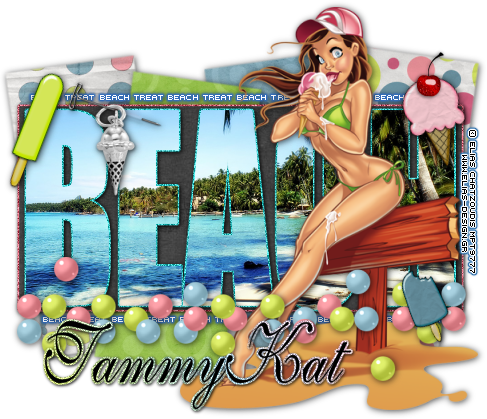
open up your template, take off the babe wordart if you want, now let’s start click on the big rectangle, selections all> float>defloat, copy and paste paper of choice, invert>delete, now click on the words beach selections all> float>defloat copy and paste your picture of choice, invert>delete, while still on the beach picture selections all> float> defloat> modify> expand by 2, add a new raster layer and flood fill color of choice, select none and add noise give this layer drop shadow and merge your beach layers only.


Now let’s click on each of the background layers one at a time do this with each one selections all> float> defloat copy and paste paper of choice, invert>delete none, now the hard part is over, let’s open up all your scrap elements of choice, resize if needed and place around the tag, now add your main tube resize if needed, drop shadow. Now bring out your text tool and type out “beach treet” in a pixel font a few times til you reach the length you want set it up on the top and the bottom of the rectangle, add a gradient glow this is optional and drag your text layer below any layers you want it to hide under.


add your copyright, & your name, Now save as a PNG and you're done!


Thanks for trying my tutorial.
Now lets see those results,
I hope you have enjoyed this tutorial!
-----------------------
This tutorial was written on May 28, 2010 by Melissa.
In no way may this tutorial be copied to another
website without the creators permission. Any resemblance
to this tutorial is purely coincidental.

Hardcore Gothic Babe


-->
This tutorial was written in PSP 9 and can be used with any other version.
I assume that you have a working knowledge of PSP.
-----------------------

Supplies Needed:
Tube of choice/close up
Awesome scrap by TammyKat
Buy her “Hardcore” scrap HERE
Fonts of choice & mask of choice
I used Vix_mask365

Plugins Needed Optional:
Eyecandy 4000- Gradient glow
Photoeffex - scanlines
Xero – Radiance
Xero - Porcelain


-----------------------
I am using the artwork of Elias Chatzoudis
You buy his tubes here www.mypsptubes.com
-----------------------


let’s open up a new canvas 600x600, now let’s open the scrap pieces of choice, I opened up the frame, now resize the frame down to a size you want I used the deform tool to do this so I don’t have any certain settings, duplicate this and drag frame beside your other frame use my tag as a reference, duplicate the same frame now drag is across again and use your deform tool and tilt it to the side alittle bit, to drag stuff I use the mover tool.


Now merge just your frames together, click on the inside selections all> modify> expand by 2, copy and paste paper of choice invert>delete select none. Now drag your paper layer below your frame, do the same with a close up tube place in the larger two frames, and then use the main tube maybe resize it a bit flipping it the opposite side if you’d like on the tilted frame do this my selecting the inside and doing the step you did for the paper, now add your porcelain effect on one tube, change the blend mode to your close up tube.. I used hard light I think, and use the radiance on this layer..


Now give any of these drop shadows, I then resized the main tube down alittle bit place infront of your frames, I then took her “hardcore” wordart and placed it the front, I added a gradient glow of white, then I added noise then drop shadow, this is optional, I then got my text tool out got on a pixel font and typed out “gothic babe” down along the bottom, I placed the wordart and text down by my tube so it would cover up the bottom of it..


Now bring out one of the star frames, resize if needed select the inside with your magic wand, selections> expand by 3, copy and paste paper of choice, invert>delete, select none. Now drag paper layer below frame, do the same but copy and paste your tube this time, colorize this if you want, now add your scanlines plugin, if you don’t have this you can use blinds and tweak with the settings you will get the same exact effect.


Add a drop shadow to that, now let’s open up some elements I opened up a few of those beads, I used pink and purple resized them down a bit and I placed them down the tilted frame, a few times added a drop shadow, and I merged everything

add your copyright, mask & your name, Now save as a PNG and you're done!


Thanks for trying my tutorial.
Now lets see those results,
I hope you have enjoyed this tutorial!


-----------------------
This tutorial was written on May 28, 2010 by Melissa.
In no way may this tutorial be copied to another
website without the creators permission. Any resemblance
to this tutorial is purely coincidental.
Saturday, May 22, 2010

Warning 2 Hot 4 You


-->
This tutorial was written in PSP 9 and can be used with any other version.
I assume that you have a working knowledge of PSP.

-----------------------
Supplies Needed:
Tube of choice/close up
Beautiful Scrap by Teresa’s Treasures
Scrap called “Shabby Chick” buy HERE
fonts of choice water brush rob, bankgothic md bt
Mask of choice, I used mask10 by Rachel HERE
-----------------------


I am using the artwork of Keith Garvey
You buy his tubes here www.mypsptubes.com
-----------------------

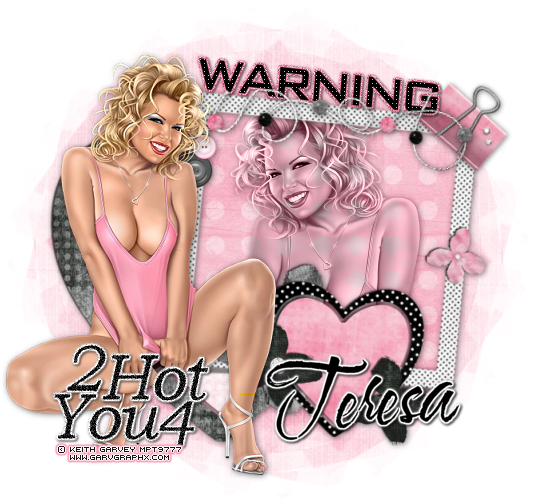
very quick and easy tutorial, open up scrap papers, elements, and the frame, use your freehand selection tool, set at point to point and go around the frame, add a new raster layer, copy and paste paper of choice, invert> delete select none, now drag your paper layer below your frame layer.


Do the same again with your freehand tool again around the frame, now copy and paste your tube of choice, invert> delete select none. Drag your tube layer below your frame but above your paper layer, add a drop shadow to your tube layer now change your blend mode on your tube to luminance legacy.

Now let’s resize the clip and the beads on the string sharpen, place the clip in right top hand corner of the frame and place the beaded string just on top of the frame as well, give both a drop shadow. Now add your main tube resize if needed add drop shadow to your tube and to your frame. Now use your text tool type out the words “WARNING” place your text on top of the frame slanted if you’d like, use your text too again and type out thw words “2 Hot 4 You” place at the bottom of your tag.


add your mask, copyright & your name, Now save as a PNG and you're done!

Thanks for trying my tutorial.
Now lets see those results,
I hope you have enjoyed this tutorial!

-----------------------
This tutorial was written on May 22nd, 2010 by Melissa.
In no way may this tutorial be copied to another
website without the creators permission. Any resemblance
to this tutorial is purely coincidental.
Wednesday, May 19, 2010

VIP Groupie


-->
This tutorial was written in PSP 9 and can be used with any other version.
I assume that you have a working knowledge of PSP.


-----------------------
Supplies Needed:
Tube of choice/close up
Badass Scrapkit by TammyKat & Sarah
You can buy “Scream My Name” HERE
Using Sara's Template36 get it HERE
font of choice i used Brody
I am using the artwork of Pinup Toons
You buy his tubes here www.cilm.com
-----------------------


easy tutorial

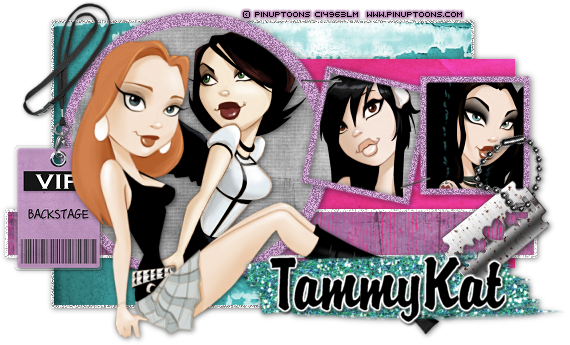
let’s open your scrap pieces papers and elements, and your template, select your template circle, selections all>float> defloat> copy and paste paper of choice, invert>delete select none. Now click on your back circle layer, do the same thing selections all float> defloat> add a new raster layer, flood fill color of choice, selections none add noise to this layer. Now lets go to your small squares back layers of the quares do the same select them and all that, flood fill color of choice and add noise, I did the same color. Select the inner frame selections all> float> defloat> copy and paste paper of choice, do this to both squares. Add drop shadows to your squares, drag tube layers below frame if they are above.
Now do the same to the other layers of the template selections all> float> defloat> copy and paste your papers of choice to each layer, add your tubes inside the squares, inside the cicle all by doing the same thing as the paper selections all> float> defloat> copy and paste tubes of choice invert>delete select none. Add your main tube in front add drop shadows to everything that needs it, add your elements of choice and give those a drop shadow, I used the vip necklace, glitter smear and the razor blade keychain.


Add your copyright & your name, Now save as a PNG and you're done!


Thanks for trying my tutorial.
Now lets see those results,
I hope you have enjoyed this tutorial!

-----------------------
This tutorial was written on May 19th, 2010 by Melissa.
In no way may this tutorial be copied to another
website without the creators permission. Any resemblance
to this tutorial is purely coincidental.
Tuesday, May 18, 2010

Sexy Gal


-->
This tutorial was written in PSP 9 and can be used with any other version.
I assume that you have a working knowledge of PSP.


-----------------------
Supplies Needed:
Tube of choice/close up
Awesome scrapkit by Cora
You can buy “I love__” HERE
font of choice i used Brush Script Std


I am using the artwork of Jose Cano
You buy his tubes here www.mypsptubes.com
-----------------------


easy tutorial


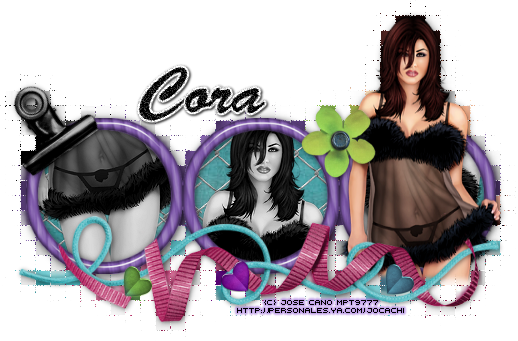
Let’s open the purple frame, lets click inside selections> select all> modify> expand by 3 copy and paste paper of choice, invert>delete select none. Drag paper layer below your frame layer, Now do the same for the fence element resize down small, now click inside on the frame selections select all> modify> expand by 3, invert>delete select none.


Now let’s get your tube and click inside each circle of the frame selections modify> expand by 3, now copy and paste your tubes in each frame, invert>delete each now drag your tube later below your frame, turn tubes black and white, add your elements of choice, I used a flower, clip, hearts, ribbon and string, add drop shadows, add your main tube drag below your ribbon and string cut off any part of the tube you don’t want to see.
Now merge your whole tag, duplicate this layer, to go your effects> texture effects> mosaic antique default settings. Now add your copyright & your name, Now save as a PNG and you're done!


Thanks for trying my tutorial.
Now lets see those results,
I hope you have enjoyed this tutorial!
-----------------------
This tutorial was written on May 18, 2010 by Melissa.
In no way may this tutorial be copied to another
website without the creators permission. Any resemblance
to this tutorial is purely coincidental.
Sunday, May 2, 2010

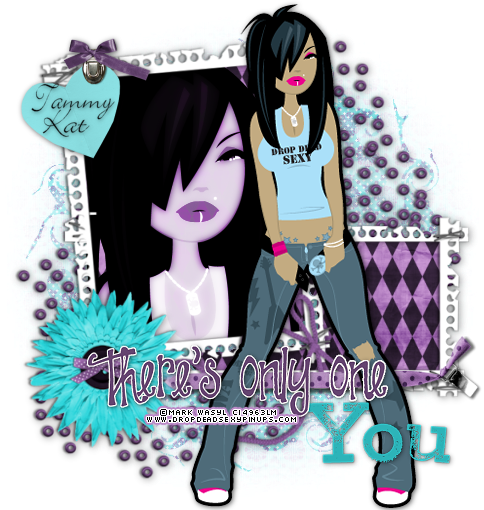
There's Only One You


-->


This tutorial was written in PSP 9 and can be used with any other version.
I assume that you have a working knowledge of PSP.


-----------------------
Supplies Needed:
Tubes of choice/close up
Gorgeous “Be You” Collab by
TammyKat, Cora & Sarah buy HERE
font of choice i used Bickley Script LET
mask of choice I don’t remember the one I used

Plugins Needed Optional:
Xero - radiance


-----------------------
I am using the artwork of Mark Wasyl
You buy his tubes here www.cilm.com
-----------------------


Very easy tutorial!


-->
let’s open your scrap pieces I used the awesome frame 4, resize if needed, now use your magic wand and click on the inside of the frames make sure to get every little piece, selections all modify> expand by 8 copy and paste your paper of choice, invert>delete select none. Now drag your paper layer below your frame, select the bigger frame do it the same way as the paper copy and paste your close up of choice, invert>delete select none. Now I changed blend mode to luminace to get the color of the paper to change my tube this is optional, now I added the radiance plugin settings of choice.


Now let’s resize your tube if needed place where you’d like your tube, open your clipped heart resize add in the corner, now open the purple spotted ribbon resize if needed now place at the bottom erase the end by the blue flower. Now add wordart resize if needed add shadow to everything you need it on. Now all you need to do is add your mask your copyright & your name, Now save as a PNG and you're done!


Thanks for trying my tutorial.
Now lets see those results,
I hope you have enjoyed this tutorial!


This tutorial was written on May 2nd, 2010 by Melissa.
In no way may this tutorial be copied to another
website without the creators permission. Any resemblance
to this tutorial is purely coincidental.