Wednesday, June 30, 2010

Screen Queen


-->

This tutorial was written in PSP 9 and can be used with any other version.
I assume that you have a working knowledge of PSP.


-----------------------
Supplies Needed:
Tube of choice/close up
Fabby scrapkit by TammyKat
Find her “Hollywood” kit Here
Template39 by Melissa, Here
fonts of choice, mask of choice
I used Becky_Mask022
-----------------------
I am using the artwork of PinupToons
You can buy his tubes Here
-----------------------


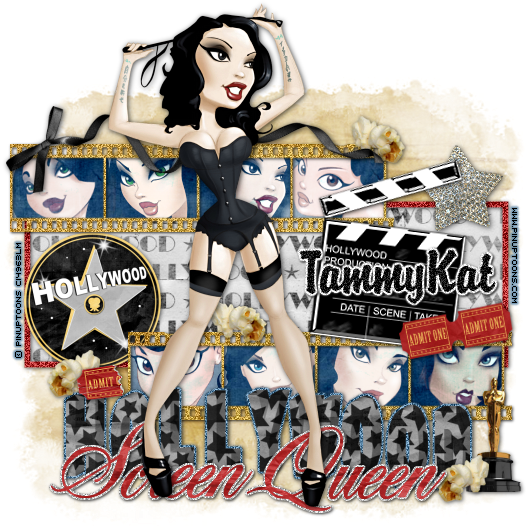
Let’s open frame your scrap pieces, bring out your magic wand click the inside of your film strips each square selections modify>expand by 3, copy and paste your paper of choice, invert>delete select none. Now drag below your film strip. Open up 9 tubes now let’s do it again but this time copy and paste each tube inside the square invert>delete select none, drag below film layer, now change your blend mode to screen. now select your film strip selections all float> defloat> copy and paste your paper of choice, invert>delete select none, add noise to your paper layer.


Now close out of all your layers but your film strip, tube layers and paper layer merege all these together. I closed out of the stars, and the bigger square in the background. This is optional, now select your background rectangle selections all float> defloat> copy and paste paper of choice, invert>delete select none. Do the same with your outter rectangle frame, selections all float> defloat> copy and paste paper of choice, invert>delete, select none now add anoise to this layer as well. Close out of all your layers once again beside your rectangle layers merge these.

Open up your main tube add drop shadow and place in the front of the template. Now let’s open up all your scrap elements, I used the popcorn, dimond star, director board, tickets, black curly ribbon, oscar, hollywood 3d wordart, hollywood circle, resize these if needed place where you’d want them, add drop shadows to all of them. Now use your wordart on the template itself “screen queen” I selected this selections all float> defloat> copy and paste paper of choice, invert>delete selections none, select this layer once again selections all float> defloat> modify> expandy by 2 add a new raster layer flood fill color of choice I picked grey, selections none, now drag flood fill layer below your paper layer add noise then a drop shadow. place your wordarts where you want them, i placed them down by her feet, now add your mask, your copyrights now you can add your name save as a PNG and you’re done.
Thanks for trying my tutorial.
Now lets see those results,
I hope you have enjoyed this tutorial!
-----------------------
This tutorial was written on June 30th, 2010 by Melissa.
In no way may this tutorial be copied to another
website without the creators permission. Any resemblance
to this tutorial is purely coincidental.

Glam Girl


-->

This tutorial was written in PSP 9 and can be used with any other version.
I assume that you have a working knowledge of PSP.


-----------------------
Supplies Needed:
Tube of choice/close up
Great scrapkit by TammyKat
Find her “Glitzy Dame” Here
fonts of choice, mask of choice
I used Becky_Mask022


-----------------------
*Warning* Contains Adult Content
I am using the artwork of Barbara Jensen
You can buy her tubes Here

-----------------------
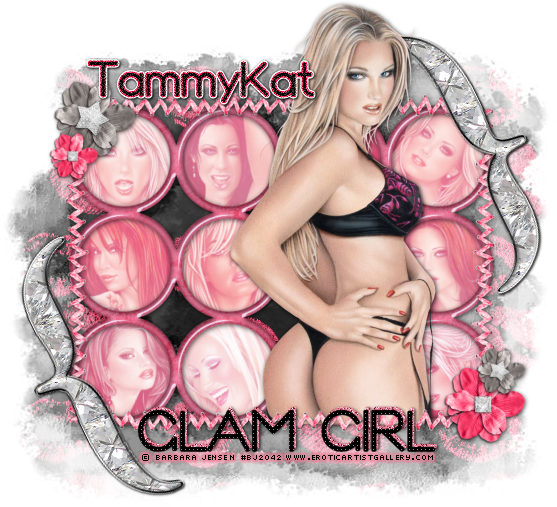
Let’s open your scrap pieces, open pink circled frame, click the inside of each circle using your magic wand selections modify>expand by 3, add a new raster layer and flood fill color of choice, select none drag filled layer below your frame, bring out 13 tubes of choice, resize all about 80% on each tube grab your magic wand click inside each circle selections modify>expand by 3 now take 12 of your tubes and place inside each circle, invert>delete select none, close out ood filled layer, merge all your tubes together, now unhide your frame drag your pink layer above your tubes and change your blend mode to screen, merge your flood fill, frame and your tube layer together.
Now bring out your elements I used the grey and pink flowers, your ric rac ribbon, and your silver brackets which there is only one so just duplicate that to make two, resize them down to the size you need, place them around your tag where you want them, add drop shadows, bring out your main tube resize if needed also add drop shadow, plave where you want it, use your text tool and type out “glam girl” add your mask, your copyrights now you can add your name save as a PNG and you’re done.
Thanks for trying my tutorial.
Now lets see those results,
I hope you have enjoyed this tutorial!


-----------------------
This tutorial was written on June 30th, 2010 by Melissa.
In no way may this tutorial be copied to another
website without the creators permission. Any resemblance
to this tutorial is purely coincidental.

Sweet Tooth


-->

This tutorial was written in PSP 9 and can be used with any other version.
I assume that you have a working knowledge of PSP.


-----------------------
Supplies Needed:
Tube of choice/close up
Yummy scrapkit by Chassity
Find her “Delicious” kit Here
fonts of choice, mask of choice
I used Becky_Mask022


-----------------------
I am using the artwork of Elias Chatzoudis
You buy his tubes here www.mypsptubes.com
-----------------------


Let’s open your scrap pieces, open the green frame, resize then image>canvas size 600x600, grab your magic wand select the inside of each frame, selections modify>expand by 4, copy and paste your paper of choice, invert>delete select none, drag below your frame layer, do the same thing click the inside expand, now copy and paste your tubes of choice, invert>delete select none. Now drag this layer below your frame, add a drop shadow to your frame resize your main tube place on either side of your frame, add drop shadow, bring out your text tool type out “sweet tooth”


Now bring out all your sweet treats from the scrapkit, I used the donughts, cherries, creame filled donuts(green) and the donuts stocked on top of each other and the long donut.. I also used the plate and the spoon, resize them if needed place where you want them I made most of the treats on top of the plate.. I then opened the jar with the candies inside I also placed that on the plate.. give all a drop shadow, get your wordart “delicious” the orange one.. you can use either one. Now just add your mask, copyrights then your name, save as a PNG, and now you’re done!
Thanks for trying my tutorial.
Now lets see those results,
I hope you have enjoyed this tutorial!
-----------------------
This tutorial was written on June 30th, 2010 by Melissa.
In no way may this tutorial be copied to another
website without the creators permission. Any resemblance
to this tutorial is purely coincidental.
Tuesday, June 29, 2010

New Sheriff


-->


This tutorial was written in PSP 9 and can be used with any other version.
I assume that you have a working knowledge of PSP.
-----------------------
Supplies Needed:
Tube of choice/close up
Awesome scrapkit by Sarah
Get her “Country Girl” kit Here
fonts of choice mask of choice
I used Becky_Mask022
Plugins Needed Optional:
Xero - porcelain
-----------------------
I am using the artwork of Andy Screen
You can buy his tubes here www.mypsptubes.com
-----------------------
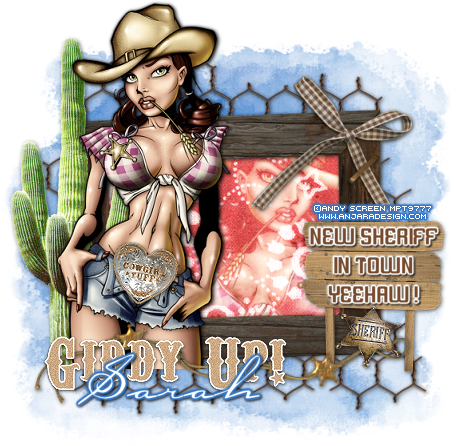
Let’s open your scrap pieces resize if needed, let’s open up your frame with the chicken wire in the background, resize if needed go to image>canvas size 600x600, grab your magic wand click the sindie of your frame, selections modify>expand by 4 copy and paste your paper of choice invert>delete selection none, drag below your frame, now resize your tube closeup click the inside of your frame again, expand by 4 copy and paste tube of choice, selections invert> delete selection none, change your blend mode to screen, add your porcelain plugin settings of choice.
Now let’s add your elements of choice, I used the catus, wordart, sheriff badge, tuff cowgirl belt buckle, string of badges, and the wooden sign, resize them if needed place where you want them to go add drop shadow, now resize your main tube if needed place on the opposite side of your frame, cut off any extra access hide below your string and wordart. I then added “New Sheriff In Town Yeehaw!” to your sign. Add your mask, copyrights, now add your name save as a PNG, and you’re done!
Thanks for trying my tutorial.
Now lets see those results,
I hope you have enjoyed this tutorial!
-----------------------
This tutorial was written on June 29th, 2010 by Melissa.
In no way may this tutorial be copied to another
website without the creators permission. Any resemblance
to this tutorial is purely coincidental.
Cowgirl


-->


This tutorial was written in PSP 9 and can be used with any other version.
I assume that you have a working knowledge of PSP.
-----------------------
Supplies Needed:
Tube of choice/close up
Awesome scrapkit by Sarah
Get her “Country Girl” kit Here
fonts of choice, Blackoak Std
Mask, I used Becky_Mask022
Plugins Needed Optional:
Xero - porcelain
-----------------------
I am using the artwork of Ismael Rac
You can find out about his tubes Here
-----------------------


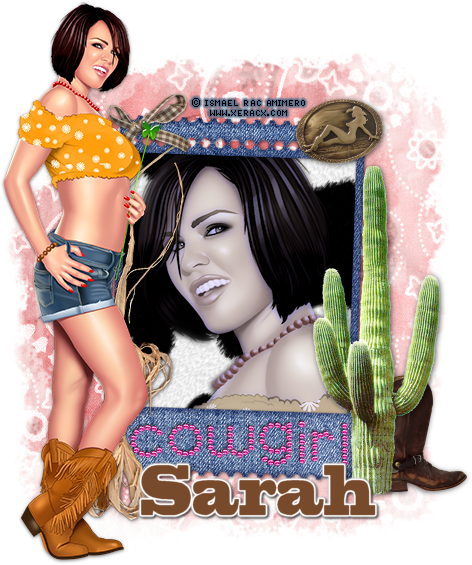
Let’s open your scrap pieces resize if needed, let’s open up your "cowgirl" frame, resize now go to image>canvas size 600x600, go to your freehand selection tool set to “point to point”, click on the outlines of your frame, copy and paste your paper of choice I used the cow print paper very cute, selections invert>delete select none. Drag below your frame layer, do the same thing you did with the frame trace the outline of it with your selection tool now copy and paste your tube of choice, invert>delete select none, now drag this below your frame layer but above your paper layer.
Now time for the fun part let’s take out your elements of choice, I used a ribbon, belt buckle, cowboy boot, and catus, now resize these if needed place where you’d like them, add a drop shadow, now go to your tube layer inside your frame and add your plugin to it settings of choice, add your main tube resize if needed add drop shadow, add your mask, then your copyrights, now your name save as a PNG and you’re done!


Thanks for trying my tutorial.
Now lets see those results,
I hope you have enjoyed this tutorial!
-----------------------
This tutorial was written on June 29th, 2010 by Melissa.
In no way may this tutorial be copied to another
website without the creators permission. Any resemblance
to this tutorial is purely coincidental.
Sunday, June 20, 2010

Roller Party


-->


This tutorial was written in PSP 9 and can be used with any other version.
I assume that you have a working knowledge of PSP.


-----------------------
Supplies Needed:
Tube of choice/close up
Awesome Scrap by Cora
Buy “Rollar Girl” Here
Fonts & Mask of choice
I used Becky_Mask022
disco ball & white frame of choice


Plugins needed are Optional:
none


-----------------------
I am using the artwork of Elias Chatzoudis
You buy his tubes here www.mypsptubes.com
-----------------------


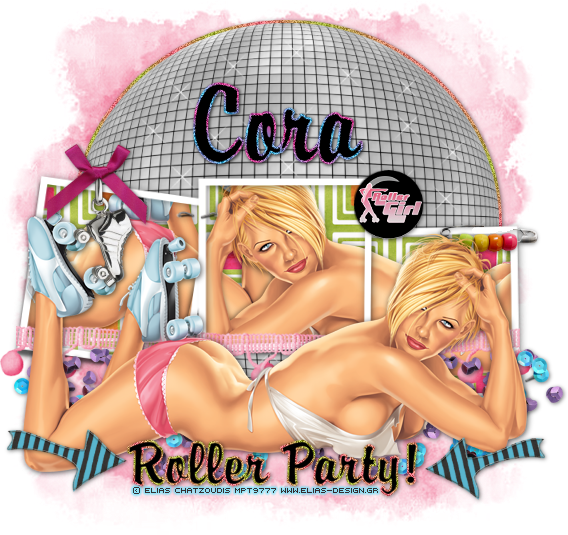
Open a 600x600 canvas now if you don’t have a frame like mine you can just make your own my using your square preset tool, if you have the frame resize and paste into your canvas, grab your free hand selection selection type set and point to point, now go on the outside of your frame right click after you reach where you started so now you should see marching ants, copy and paste your pape of choice, invert>delete select none. Drag your paper layer below your frame, now stay on your paper layer selections all float> defloat> copy and paste your tubes of choice, invert>delete. Drag this below your frame layer as well if it isn’t alright, but above your paper layer.


Now if you don’t have a disco ball you can always just use your preset tool and draw out a big circle and place it behind your frame, maybe add some type of plugin inside the circle give it abit of a boost so it doesn’t look plain, But (if you have a disco ball) let’s resize if needed copy and paste drag it below your frame layer select your ball selections all float> defloat> modify> expand by 3, add a new raster layer flood fill gradient of choice, selections none, now you drag this layer below your disco ball, add noise if you like now add a drop shadow.


Now copy and paste your tube of choice, resize if needed place in front of your frame, add drop shadow, bring out your text tool and type out “Roller Girl” foreground your gradient of choice and background black, once you place your text in grab your magic wand select the outside of your text the gradient part now add noise too it, now give a drop shadow.. now it’s time for the fun part, let’s bring out your elements I used sequins, arrow, safty pin, roller skate charm, roller girl button and the pink ribbon with balls on them, resize if needed and place them where you want them, add your drop shadow now add your mask, then resize the tag if needed add copyrights, now add your name, then save as a png and you’re done!
Thanks for trying my tutorial.
Now lets see those results,
I hope you have enjoyed this tutorial!
-----------------------
This tutorial was written on June 20, 2010 by Melissa.
In no way may this tutorial be copied to another
website without the creators permission. Any resemblance
to this tutorial is purely coincidental.
Saturday, June 19, 2010

Teachers Pet


-->


This tutorial was written in PSP 9 and can be used with any other version.
I assume that you have a working knowledge of PSP.

-----------------------
Supplies Needed:
Tube of choice/close up
Super Huge Scrap by Sarah
Buy her “Her HighSchool Years” Here
Fonts of choice & Mask of choice
I used Becky_Mask022
Brick pattern & chalkboard of choice
Plugins needed are Optional:
Mura’s meister-copies


-----------------------
I am using the artwork of Scott Blair
You buy his tubes here www.mypsptubes.com
-----------------------


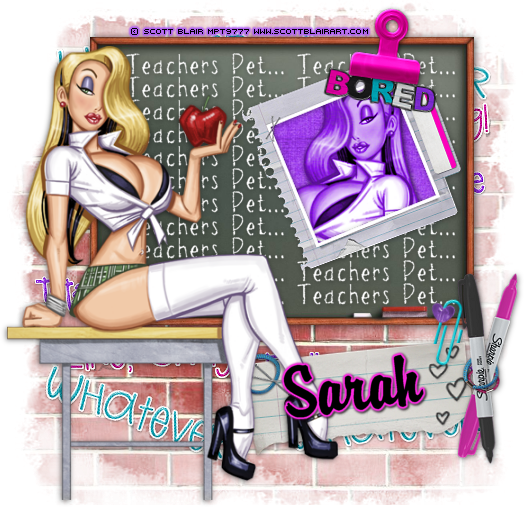
Open a 550x550 canvas use a brick pattern of choice, copy and paste your pattern on your canvas then apply your mask to your pattern now add your chalk board resize if needed now add drop shadow, now let’s open your tube of choice resize place where you want it and add drop shadow. Bring out your text tool and type out “Teachers Pet” use your copies plugin set on “tiling” cut off any access you don’t want showing. Drag below your tube layer add drop shadow Now open up one of the frames, resize if needed place on your chalk board click the inside of your frame using your magic wand, selections modify> expand by 3, copy and paste your paper of choice invert>delete select none, now do the same and copy and paste your tube inside this time, change blend mode to your tube, to “luminance legacy”


Now let’s just start adding your elements, I used the wordarts whatever, like omg, whatever, and I places them on the brick mask just place them any where, merge just your wordarts together and you can see them alil bit on the brick, now I also used the bored wordart, clip, piece of paper, sharpies and paper clip, use my tag as a reference and just place them where you want them, also add drop shadows, now resize your tag add your copyrights, add your name and save as a png and you’re done!


Thanks for trying my tutorial.
Now lets see those results,
I hope you have enjoyed this tutorial!
-----------------------
This tutorial was written on June 19, 2010 by Melissa.
In no way may this tutorial be copied to another
website without the creators permission. Any resemblance
to this tutorial is purely coincidental.
Blondes Vs Brunettes


-->


This tutorial was written in PSP 9 and can be used with any other version.
I assume that you have a working knowledge of PSP.


(I have nothing against blondes or any other hair colors so don’t be offended! You can change the hair color name to whatever hair color your hair is! )


-----------------------
Supplies Needed:
Tube of choice/close up
Awesome Scrap by Tamie
Buy her “Bad Girl” scrap Here Which is
64% off get it while it lasts! it's a must have!
Fonts of choice & Mask of choice
I used Vix_mask365


Plugins Optional:
Eyecandy 4000-gradient glow
Pent.com-color dot
Mura’s meister-copies


-----------------------
I am using the artwork of Keith Garvey
You buy his tubes here www.mypsptubes.com
-----------------------


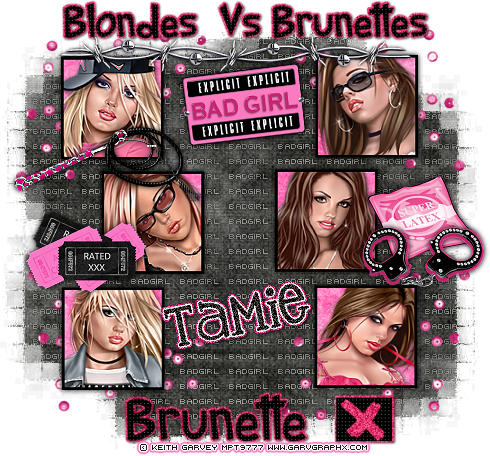
Let’s open a 600x600 canvas you can resize later let’s open all the scrap pieces you want, now grab your preset tool and go to rectangle, and on the top make sure the “square” is checked, (it will make a perfect square then lol) check your “background” layer and go to your patterns and open your paper in through there so when you drag out the square your paper is already in there! now drag out 3 on each side both now straight mix it up and use my tag as an example. now once you’ve got all 6 squares select them and now start adding your tubes, left side I used 3 gorgeous blondes, and on the right I used 3 gorgeous brunettes! Once you’ve added these, which you would select all>float defloat> and copy and paste each tube in invert>delete.


Now add a semi think black gradient glow around all your squares, add drop shadow. Now it’s time for your mask, once you’ve added your mask bring out your text tool type out “badgirl” in a pixel font, let’s go to your plugin copies mess with the settings to get your liking, select your mask selections all> float> defloat> invert now go to your text layer and click delete. Select none.. now make sure your text layer is below your squares but above your mask. Bring out your text tool again type out “Blondes Vs Brunettes” on the top of your tag above your frames, now add “Brunette” or which ever hair you choose to put, now bring out your square preset tool again draw out a small circle, now go to your preset shapes and look through and find a check mark or an X. now with that I added my color dot to the words itself and the square and X, then I added a hot pink glow behind everything then I did a drop shadow to my texts and square.


Now for the fun part! Now add all the hot elements you want all around your tag, in this awesome scrapkit there is elements for everyones tastes, I used the sequins, whip, tickets, condom, handcuffs, barbwire and bad girl plate, now resize your tag if you want, add your copyright, your name and now save as PNG and you’re done!


-->
Thanks for trying my tutorial.
Now lets see those results,
I hope you have enjoyed this tutorial!
-----------------------
This tutorial was written on June 19, 2010 by Melissa.
In no way may this tutorial be copied to another
website without the creators permission. Any resemblance
to this tutorial is purely coincidental.
100% All Natural


This tutorial was written in PSP 9 and can be used with any other version.
I assume that you have a working knowledge of PSP.


-----------------------

Supplies Needed:
Tube of choice/close up
Awesome Scrap by Sarah
Buy her “Going Green” scrap Here
Fonts of choice & Mask of choice
I used Vix_mask365
Plugins Optional:
Xero-porcelin


-----------------------
I am using the artwork of Scott Blair
You buy his tubes here www.mypsptubes.com
-----------------------


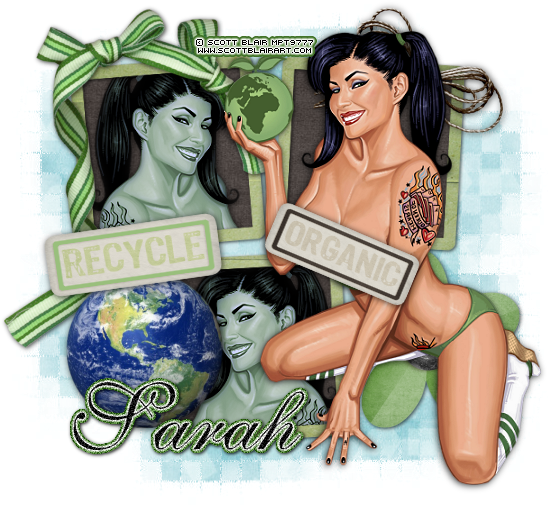
Let’s open up some scrap pieces, open up the 3 piece frame , grab your magic wand click the inside of each frame selections> modify> expand by 3 copy and paste your paper of choice, invert>delete select none, drag your paper below your frame. Now let’s do the same step but instead copy and paste your tubes of choice, invert>delete I changed the color you can do so by going to adjust>hue and saturation and mess with the colors I used green obviously lol. Now add your porcelin plugin to your tubes inside your frame.


Now resize tube if needed and place on the side of your frame add a drop shadow now your elements of choice, I used the flower, ribbons, the recycle/organic tabs and your earth place them where you want them and add a drop shadow too them.. I added the organic tab in front of my tubes breasts because I felt like it was too much showing for my taste lol you don’t have to do this! Now add your mask, copyrights, your name now you can save as a PNG and you’re done!


Thanks for trying my tutorial.
Now lets see those results,
I hope you have enjoyed this tutorial!


-----------------------
This tutorial was written on June 19, 2010 by Melissa.
In no way may this tutorial be copied to another
website without the creators permission. Any resemblance
to this tutorial is purely coincidental.