Tuesday, August 31, 2010

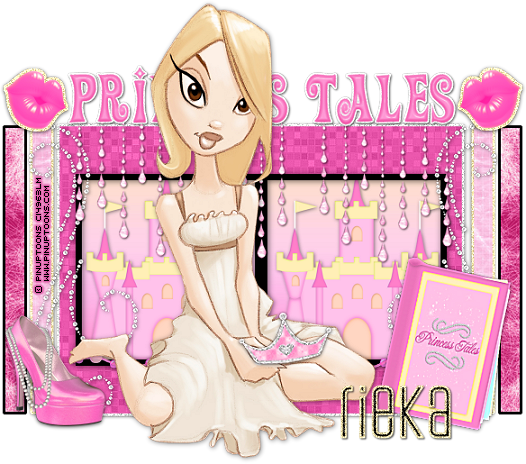
Princess Tales


-->

This tutorial was written in PSP 9 and can be used with any other version.
I assume that you have a working knowledge of PSP.


-----------------------
Supplies Needed:
Tube of choice/close up
Great Ptu scrapkit by Rieka
Find her “Princess Tales” kit Here
Fonts of choice, Template84
By Yvette get it Here


-----------------------
I am using the artwork of PinupToons
You can buy his tubes www.cilm.com
-----------------------


Let’s open up the template, get rid of copyrights, small text, background, and the dotted lines, now X out of all your layers but the last layer, selections all float> defloat> copy and paste paper of choice, invert>delete, select none. Unhide your pink rectangle selections all float> defloat> copy and paste paper of choice invert> delete select none. Now unhide the rest of the layers and do as you did above then merge.


Now go to image>canvas size 700x700 and drag your template in the middle of the frame so you have room for everything. Now open up all your elements, I used lips, high heel, diamond doodle, princess tales book, castle, princess tales word art, and tiara. Now resize these if needed place them all around your tag, now add your tube of choice, add a drop shadow to your tube and your elements, now what i do is right click on the tab of your canvas, right click "cut" then paste back into your paintshop instead of resizing the whole tag, but i did that then i did resize it down some, now add copyrights then add your name save as a PNG and you’re done.


Thanks for trying my tutorial.
Now lets see those results,
I hope you have enjoyed this tutorial!


-----------------------
This tutorial was written on Auguest 31th, 2010 by Melissa.
In no way may this tutorial be copied to another
website without the creators permission. Any resemblance
to this tutorial is purely coincidental.

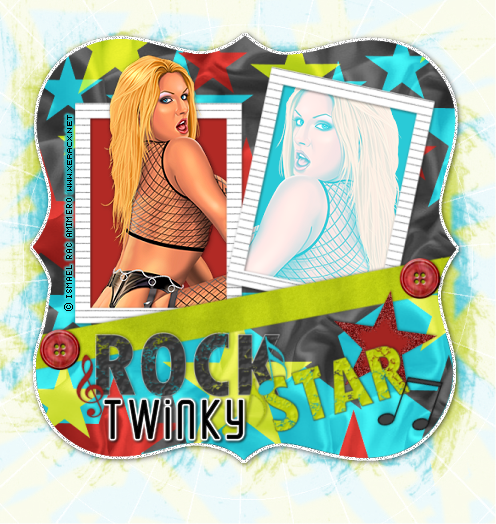
Rock Star


-->

This tutorial was written in PSP 9 and can be used with any other version.
I assume that you have a working knowledge of PSP.


-----------------------
Supplies Needed:
Tube of choice/close up
FTU scrapkit by Twinky
Find her “Rock Star” kit Here
Fonts of choice, mask of choice
Insatiabledreams Mask 62, by Cat
Get that mask and many more Here


-----------------------
I am using the artwork of Ismael Rac
This tube was bought at AMI, But
You can buy his tubes Here
-----------------------

Very easy tutorial.
Let’s open up template3 in twinkys rock star kit, resize it down, click use your magic wand clicking the window of each square selections all modify>expand by 4, add a new raster layer now flood fill 2 colors of choice, select none. Drag layer below your frame, now open up your tube or a close up of your tube you want to use resize click on the right side frame, use your magic wand again click the inside, modify>expand by 4 copy and paste your tube of choice, invert>delete select none. Now change blend mode to your tube.


Now resize your main tube place on the left side above the rectangle frame add drop shadow, place where you want duplicate tube layer, drag below your frame layer, take your eraser tool and erase the tube on the bottom use my tag as a reference so it looks like your tube is poking out of the frame, now add your mask, copyrights now you can add your name save as a PNG and you’re done.


Thanks for trying my tutorial.
Now lets see those results,
I hope you have enjoyed this tutorial!


-----------------------
This tutorial was written on Auguest 31th, 2010 by Melissa.
In no way may this tutorial be copied to another
website without the creators permission. Any resemblance
to this tutorial is purely coincidental.
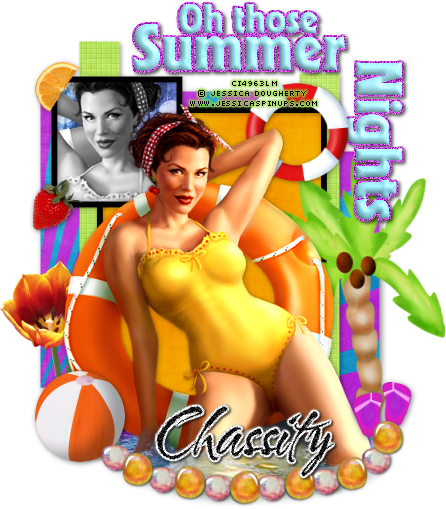
Summer Nights


-->


This tutorial was written in PSP 9 and can be used with any other version.
I assume that you have a working knowledge of PSP.


-----------------------
Supplies Needed:
Tube of choice/close up
Beautiful scrapkit by Chassity
Find her “Summer Time” kit Here
Fonts of choice, template52
By Melissa get it Here


-----------------------
I am using the artwork of Jessica Dougherty
You can buy her tubes www.cilm.com
-----------------------


Let’s open your template, take off the palm trees and the dots, now open up your scrap pies of choice, let’s X out of all the layers beside the big square in the background, selections all float> defloat> copy and paste paper of choice, invert>delete select none. Get rid of temp layer, unhide your next layer “narrow rectangle” selections all float> defloat> copy and paste paper of choice, invert>delete select none. Get rid of temp layer, now do the same as above with your next layer rectangle, then the rectangle frame, squares, square frames until you are up to the wordart part.


Unhide wordart, selections all float> defloat> copy and paste paper of choice, invert>delete. Get rid of temp layer, now click back on the paper layer you did for the wordart, selections all float> defloat> modify> expand by 3, add a new raster layer flood fill color of choice select none drag flood fill layer below your wordart layer. Add noise. Now go back to your top left square layer, selections all float> defloat> copy and paste tube of choice invert>delete. Select none. Now shadow tube layer to B&W.
Now open up your tube a place in front of the template resize if needed, add drop shadow, now open up your scrap pieces, I used element 3, 4, 5, 6, 14, 15, 17, 18, 32 re size if needed place them where you want them and add drop shadows add your copyrights now you can add your name save as a PNG and you’re done.
Thanks for trying my tutorial.
Now lets see those results,
I hope you have enjoyed this tutorial!
-----------------------
This tutorial was written on August 31th, 2010 by Melissa.
In no way may this tutorial be copied to another
website without the creators permission. Any resemblance
to this tutorial is purely coincidental.
Tuesday, August 17, 2010

Fresh New Look

Phew! So now i finally got a new header and a new layout! Scrapkit is by the Talented Kristin her blog and where to buy this scrap kit is on the side panel, Header is made by me which you can find the tutorial for it it called "Lithium" in the July section. Finally got my colors fixed and finally got rid of that pesky border around my header & my images! Yay thank you to the girls at CM for helping me out! Hope you all like it, also have 2 tutorials new in August and more to come.

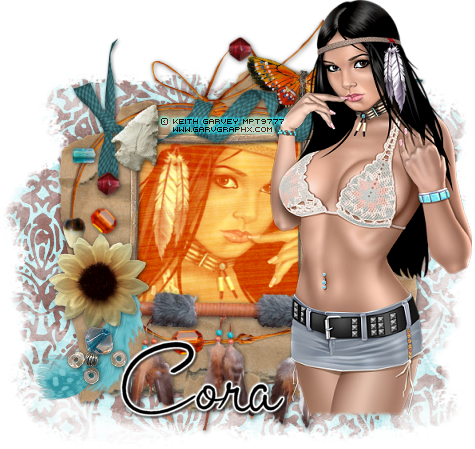
Native Beauty


->

This tutorial was written in PSP 9 and can be used with any other version.
I assume that you have a working knowledge of PSP.


-----------------------
Supplies Needed:
Tube of choice/close up
Great scrapkit by Cora
Find her “Native Beauty” kit Here
fonts of choice, mask of choice
I used Becky_Mask022
Plugins Needed Optional:
none


-----------------------
I am using the artwork of Keith Garvey
You can buy his tubes www.mypsptubes.com
-----------------------


Let’s open your scrap pieces, open up frame 3 resize if needed let’s go to image > canvas size 600x600 drag the frame in the middle, now open frame 4 resize down so it fits on top of frame 3’s square frame in the middle, now grab your magic wand click the sindie of frame 4 selections all float> defloat> modify expand by 3 maybe copy and paste paper of choice invert>delete select none, now drag below both frames, click the inside of the top frame again now copy and paste a close up tube of choice, invert>delete select none, now I changed the blend mode of the tube layer.


Now add a drop shadow to frame 4, and frame 3 and merge these, now get your main tube resize it down if needed and place it on the side of the frames crop the bottom access off, I used my selection tool>select type rectangle then feather set at 5 and just cut off the litle piece at the bottom and the feather will make it look better.


Now time for the fun part adding all the awesome elements, I used some of the beads, sunflower, blue feather, curly ribbon, arrow head, butterfly and the axe, I hid the axe part, now just resize them down to what you want, place them where you want and then give them all a drop shadow now add your mask, your copyrights now you can add your name save as a PNG and you’re done.


Thanks for trying my tutorial.
Now lets see those results,
I hope you have enjoyed this tutorial!


-----------------------
This tutorial was written on August 17th, 2010 by Melissa.
In no way may this tutorial be copied to another
website without the creators permission. Any resemblance
to this tutorial is purely coincidental.

Buggin


This tutorial was written in PSP 9 and can be used with any other version.

I assume that you have a working knowledge of PSP.


-----------------------

Supplies Needed:

Tube of choice/close up

Great scrapkit by TammyKat

Find her “Don't Bug Me” kit Here

it's only 1$ so get it while it lasts!!

fonts of choice, mask of choice

I used DBV Mask 109


Plugins Needed Optional:

none


-----------------------

I am using the artwork of Dean Yeagle

You can buy his tubes www.cilm.com

-----------------------


Let’s open your scrap pieces, open the pink oval frame with the blue butterfly on it, resize now go to image> canvas size 600x600 drag your fram up higher so we can work with it, grab your magic wand click on the inside of the frame selections all float> defloat> modify> expand by maybe 6 now copy and paste paper of choice, I used the red one. Open your tube I used a fun dean yeagle tube that matched the scrap perfect, add your drop shadow first after copying and pasting it on the frame now duplicate your tube layer drag the duplicated layer below the frame, and make sure the original is on top of the frame, use your eraser tool and take off the tube you want to hide.


Now that was easy! Now time for the fun part let’s bring out all of your elements, I used the clouds, the different colored butterflies, sun, leaf, ladybug, buggin wordart, ribbon, there is several colors of all of the bug elements, papers just everything has a color to match so choose which ones you want, resize all the elements place where you want use my tag as a reference or place them where ever you want, I also used the orange butterfly and the pretty white flowers from the dean yeagle tube itself, now add your drop shadow, now add your mask, your copyrights now you can add your name save as a PNG and you’re done.


Thanks for trying my tutorial.

Now lets see those results,

I hope you have enjoyed this tutorial!


-----------------------

This tutorial was written on August 17th, 2010 by Melissa.

In no way may this tutorial be copied to another

website without the creators permission. Any resemblance

to this tutorial is purely coincidental.