Wednesday, March 7, 2012
New Tag
Tuesday, March 6, 2012
PSP Crazy
Friday, February 3, 2012
Looking to be a Tagger CT
Monday, November 14, 2011
The Diva

This tutorial was written in PSP 9 and can be used with any other version.
I assume that you have a working knowledge of PSP.
-----------------------
Supplies Needed:
Tube of choice/close up
Template10 by Lori
find her temp HERE
gradient of choice
Fonts of choice
Plugins needed are Optional:
penta.com - color dot
penta.com - jeans
photoeffex - scanlines
xero - radiance
alien skin xenofex - constellation
eye candy 4000 - hsb noise
i just don't have that plugin
anymore so i use add noise
lokas software - plastic
or you can use eye candy 4000 - glass
-----------------------
I am using the artwork of Elias Chatoudis
You buy his tubes here PTE
-----------------------
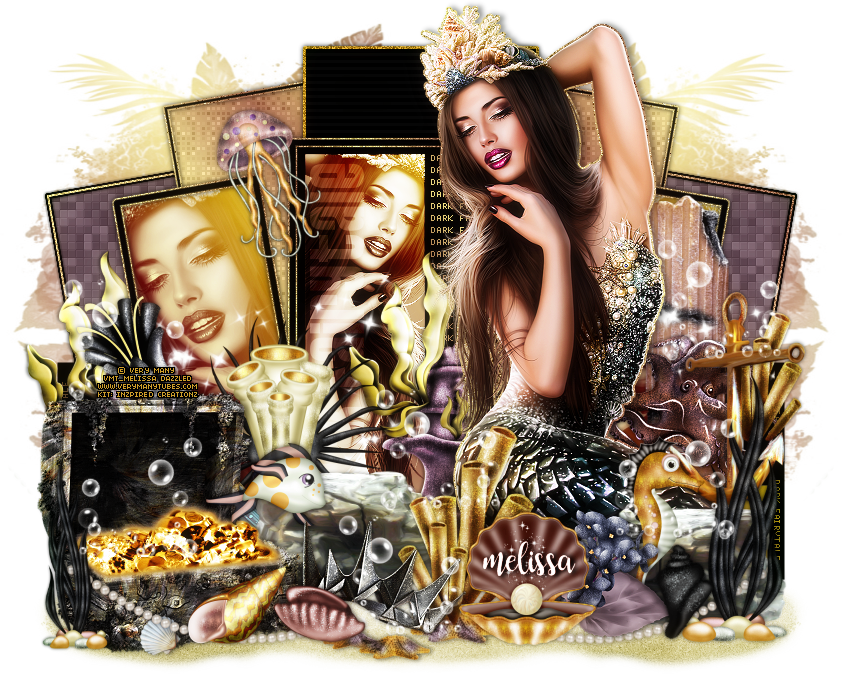
Let's open her template, i took off the top left and bottom squares, delete them. also took off the white background. now let's open a close up tube of choice, select the black circle then selections all> float> defloat> now copy and paste as new layer of your close up tube place where you want now selections invert>delete select none.
adjust>hue and saturation>colorize make sure the dials are both at zero to turn black & white, now lower opacity down to 30 or to your liking, now we're going to open our plugin xero - radiance apply settings of your choice, now closeout of all your layers aside from the black circle, tube layer merge these now let's open penta.com - jeans, settings of choice, then open alien skin - constellation also settings of choice.
unhide all of our layers, click on middle frame let's open our lokas - plastic settings of choice, but click on the color section next to color overlay (should be black click on it) and select a color of choice i used purple now let's open photoeffex - scanlines now use settings of choice on your frame, now select your colored frame, selections all float>defloat> modify> expand by 2 now add new raster layer, flood fill color of choice, i used white select none now drag your white frame under your middle frame, so there is a thing white on the outside, now add noise then drop shadow close out all layers besides your noise, frame, black circle layer now merge and unhide everything else.
now do the same with your top and bottom trio layer, the same steps as your middle frame when you get done with that close out of all layers but your noise frames for the trio frames and trio frames now merge and unhide rest of the layers.
select your bottom inner circle trio frames, selections all float>defloat add a new raster layer and flood fill gradient of choice select none and do the same with the top trio inner circles, (delete the template circles) i then copy and pasted my two tube faces in the little circles you can use whatever part of the tube you'd like, by selecting your gradient circles selections all float>defloat> paste your tube as new layer invert>delete, do this for each circle, changing the blend mode for each tube layer to either overlay or screen, while adding xero - radiance to each tube setting of choice hide all layers once more then merge your tube layer, gradient circles then add penta.com - color dot settings of choice.
Now let's add your main tube i used the oppisite tube i used inside the big circle, hide behind your trio frames, add drop shadow, xero - radiance to your tube if you'd like... now resize if needed i just merge everything cut and paste as a new image and it makes the tag smaller now add your copryights, your quote if you want any then add your name save as a PNG and now you're done.. i hope i didn't confuse you much if so if you have any questions feel free to leave so in a comment or in my chat box and i'll try to get back to you soon and help you out.
Thanks for trying my tutorial.
Now lets see those results,
I hope you have enjoyed this tutorial!
-----------------------
This tutorial was written on November 14th, 2011 by Melissa.
In no way may this tutorial be copied to another
website without the creators permission. Any resemblance
to this tutorial is purely coincidental.
Saturday, September 3, 2011
Island Beach
I assume that you have a working knowledge of PSP.
-----------------------
Supplies Needed:
Tube of choice/close up
Awesome FTU scrapkit by
Melissa at her blog HERE
Template416 by Missy get
her template at her blog HERE
Font of choice
Plugins needed are Optional:
photo effex - scanlines
xero - radiance
-----------------------
I am using the artwork of Keith Garvey
You buy his tubes here PTE
-----------------------
Let's open her template, i took some pieces off, but i left the 2 front circles, the 2 back squares and the middle square, get rid of the rest if you want, close out of the rest of your layers besides the 2 squares in the back. go and open your elements and papers then go open your tube. I used the glittery paper for both squares but as you can see it's different colors i used the top of the paper the orange on the left square then select>select all>float>defloat> copy paper and paste paper then invert>delete, select none. get rid of the template square. do the same for the other square but flip the glitter paper so its pink, then selections>all float>defloat copy and paste paper, then invert>delete, select none. get rid of the template square.
now i merged, then selection all float>defloat> modify>expand by 2 or 3 which ever you like, invert> add a new raster layer flood fill color of choice i used greenish, select none, drag below your paper layer, add noise then drop down shadow now merge these. let's open the middle square back up selections all float>defloat> invert, copy and paste the paper with the faded circles on them with the gradient, invert>delete select none.
now time for the best part adding your elements resze them down if needed and just place them where you want on the tag i used the coconut drink, polaride picture, the banjo, grass, beach sign, and the folor circles, i placed it over the circle frame, i then used my deformed tool to make it fit perfectly around the circles, do this for each then add drop shadow and merge the circles, tubes and flower circles together, you should now at this point unnhide all of your other layers.
Thanks for trying my tutorial.
Now lets see those results,
I hope you have enjoyed this tutorial!
-----------------------
This tutorial was written on September 3rd, 2011 by Melissa.
In no way may this tutorial be copied to another
website without the creators permission. Any resemblance
to this tutorial is purely coincidental.
Friday, June 17, 2011
New Templates
Monday, May 30, 2011
My First Cluster
Kaci & Kristin
Cluster Frame

Download
Here is a tag i've made with this cluster. Please leave some love on my blog if you snag my cluster frame, and at their blogs if you snag their scrapkit. Click on the tags to make them bigger my blog is messing up and won't show the larger tag for some reason